Twitch Setup
Linking an account
You can link as many Twitch accounts as you like. The plugin will only listen to events coming from the linked account, so you will need to link every streamer's account.
To link an account, simply run /twitch link in the server console or in the game chat if you have the chatpointsttv.manage permission assigned. You will get a unique Device Code, which you will need to enter in Twitch's Device Activation Page. Once you type in the code, log in with a Twitch account and authorise the app, the plugin will start listening to Events.
Repeat this process to link all the desired accounts.
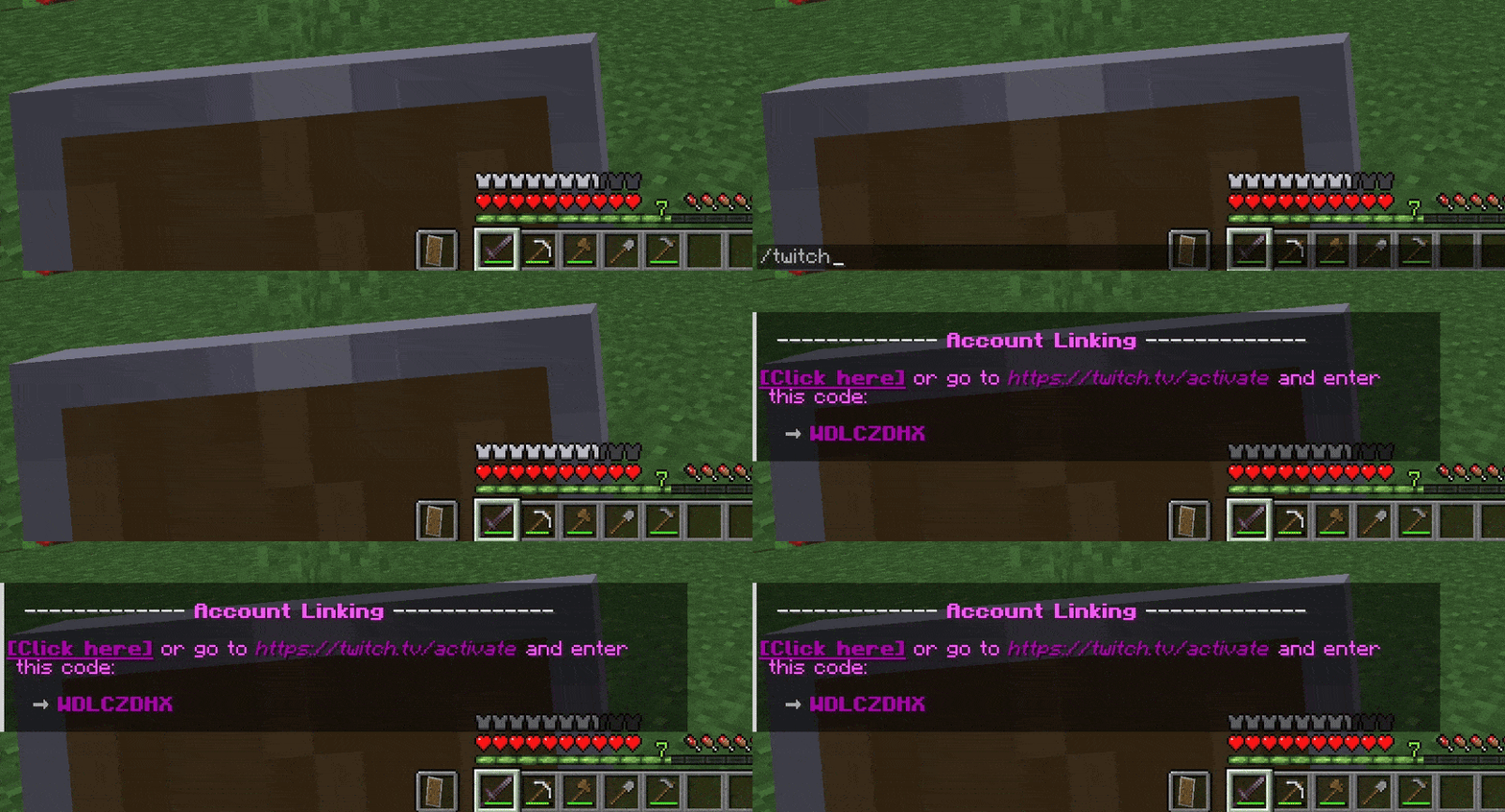
If the linking process succeded, you should see a message in the chat. From now on, all events will be running the configured actions.
Your account will be saved in the accounts file and will be now linked automatically after the server starts. To remove your account run the unlink command.
You may learn more about other Twitch commands here
Setting up Channel Point Rewards
You may use any Custom Channel Point Reward to create an Event. However, it is recommended to create your Rewards through ChatPointsTTV with the createreward command.
The reason for this is that due to Twitch API limitations the plugin can only modify Rewards created by itself, and cannot manage anything coming from any Reward made by the user manually on the Twitch Dashboard. Hence if the MANAGE_CHANNEL_POINT_REWARDS option is enabled, it will only work with Rewards created using this command.
Nevertheless, we can still listen to redemptions of any rewards regardless of who created them, but not interact with them further (i.e. marking them automatically as completed).